Creatio Freedom UI Migration: A Practical Admin Checklist
Most Creatio teams never planned a Freedom UI migration. The shell changed on them. Use this checklist to make the change deliberate instead of accidental.
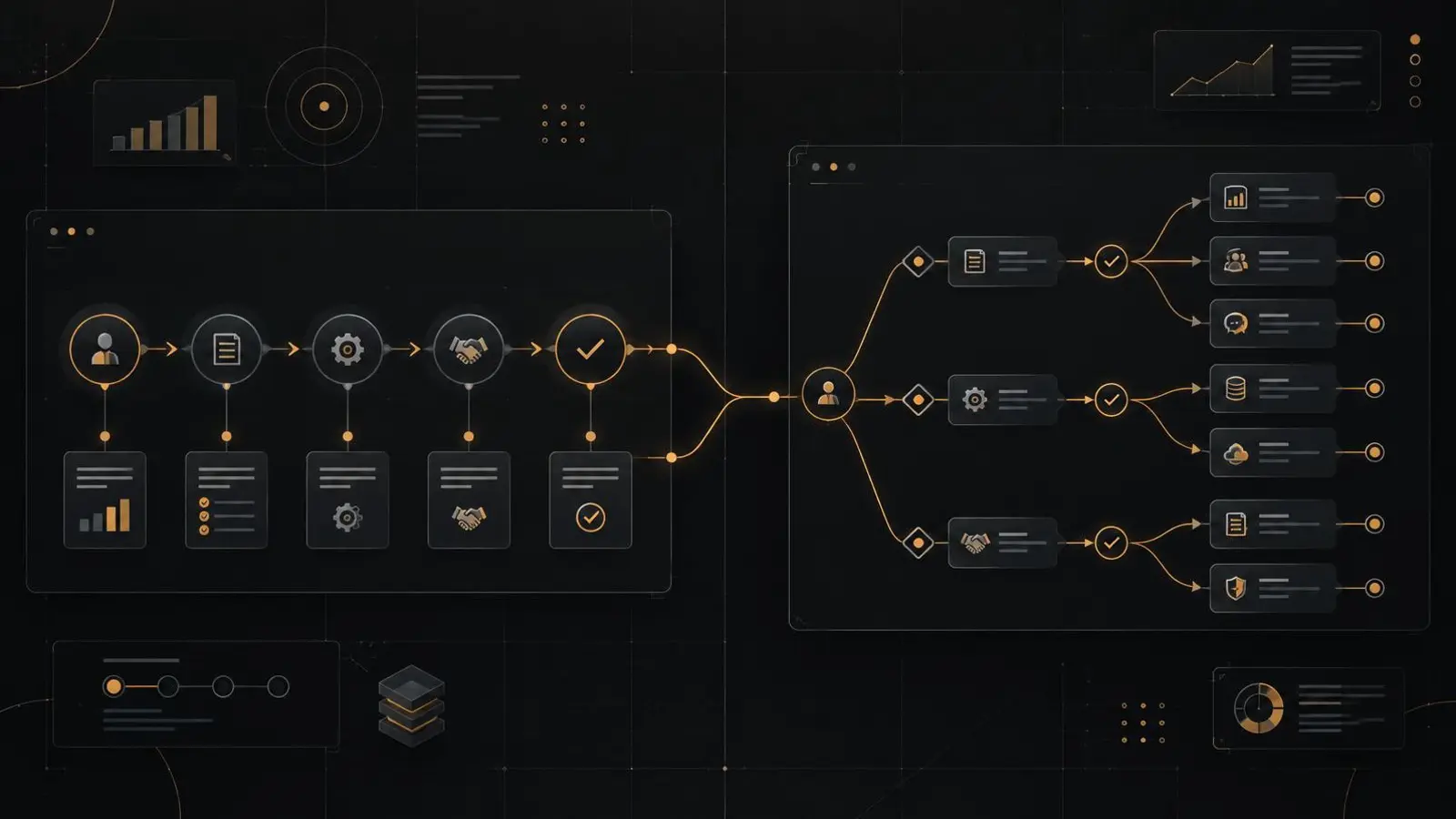
Most Creatio teams did not set out to run a UI migration. The application changed underneath them. Starting with Creatio 8.3.2, support for the Classic UI shell is officially discontinued, and environments still using the Classic UI shell are automatically switched to the Freedom UI shell when they upgrade. The change affects the panels, navigation, communication areas and related elements that frame every page.
The important nuance is that existing functionality, including Classic UI sections, remains unaffected and continues to operate as before. That is good news, but it also creates a false sense of safety. The shell switch is automatic; the readiness work is not. Navigation moves, habits break, role-specific instructions go stale, and any customization that was tested only against the old shell needs a second look.
This is an administrator's checklist for that work. It is deliberately not a redesign project.
Key takeaways
- Confirm your current version, target version and deployment model before planning anything.
- Inventory the screens and integrations users actually touch, not every object in the system.
- Check licensing early: Freedom UI customization is available on Enterprise and Unlimited plans.
- Pilot the shell with real roles in a lower environment, then rehearse the production cutover.
- Treat the switch as a change-management event with named owners, sign-off criteria and a rollback position.
What actually changes in Creatio 8.3.2
Two different things are often discussed as "the classic UI". Keep them separate.
The shell is the frame around the application: the side panel and navigation, the upper and communication panels, desktops and the related elements that sit around the working area. At 8.3.2, environments on the Classic UI shell are moved to the Freedom UI shell during upgrade.
A Classic UI section is the older page and designer experience inside the working area. Creatio's documentation states that existing functionality, including Classic UI sections, remains unaffected and continues to operate as before.
That distinction changes the plan. You are not rebuilding every section. You are checking everything that depends on the shell, plus every customization and integration that could behave differently in the new shell, and then deciding — with evidence — what else genuinely needs to move.
The Freedom UI itself is not new. It has been the default UI since the Creatio 8.0 Atlas release, so many teams already work in it daily. The 8.3.2 step matters most to organizations that deliberately stayed on the classic shell or inherited an environment that did.
Related: Creatio release notes: deciding what to adopt and test.
Step 1: Confirm your version, path and support position
Before you design a migration, write down four facts:
- Your current Creatio version and patch level.
- Your target version and the planned upgrade window.
- Whether you run Creatio Cloud or an on-site deployment, because rollback and environment options differ.
- Which customizations, add-ons and marketplace apps your account team supports on the target version.
Do not infer the fourth point from documentation alone. Creatio's no-code customization documentation is now centered on Freedom UI, and the practical question for an admin is not only "does it work?" but "will it be supported if it does not?" Ask the question in writing and keep the answer with the project record.
Step 2: Inventory what users actually touch
A useful inventory is smaller than the system inventory and more honest. Start from the roles that use Creatio every day, then list what they open.
For each area, record the current experience, its owner, how critical it is, and how you will test it:
| Area | What to record | Why it matters |
|---|---|---|
| Workplaces and navigation | Every workplace, section order and shortcut users rely on | The shell controls navigation, so this is where habits break first |
| Critical sections | Sections used daily, by role, with the views and filters people actually use | Proves the important work still runs after the switch |
| Custom pages and layouts | Any page, record layout or list view customized for a team | These need visual and functional checks, not just a login test |
| Business processes | Processes started from a record, a section toolbar or the global process button | Entry points can move or look different in the new shell |
| Dashboards and reports | Operational dashboards, scheduled reports, print-ready outputs | Layout and filtering issues surface late if they are untested |
| Integrations | Email, telephony, SSO, ERP, marketing tools, add-ons | A shell change can expose assumptions in embedded interfaces |
| User administration | Roles, teams, business rules, field-level permissions | Verify the right people still see the right records and fields |
| Localization | Languages, translated labels, translated Freedom UI elements | Check that translations still render in the places users work |
Include the quiet users too: finance teams that open a read-only dashboard, service managers who rely on notifications, and administrators who use the System Designer. A migration that satisfies sales but breaks the approval queue is still a failed cutover.
For each line, add a test scenario written as an action and an expected result. "Manager opens the pipeline dashboard and sees the same totals as yesterday" is testable. "Check dashboards" is not.
Step 3: Check licensing before you design
Creatio's documentation states that Freedom UI customization is available only on Enterprise and Unlimited pricing plans. Confirm your plan and your contract position before promising a team that every custom page will be rebuilt in the new designer.
The shell switch and the ability to customize Freedom UI elements are separate questions. If your plan constrains the second, design around that constraint: keep what works, prioritize business-critical changes, and get the commercial answer first rather than discovering it during testing.
Step 4: Pilot in a lower environment
Upgrade a copy of production in a non-production environment first, using the same version and deployment path you intend to use in production. Then enable the Freedom UI shell for a pilot group rather than the whole organization. Creatio's documentation confirms that administrators can enable the Freedom UI shell in advance for selected users, roles or the entire organization, which makes a controlled pilot possible.
Choose pilot users across roles, not just IT. At minimum: a sales user, a service user, a manager who lives in dashboards, and an administrator. Give them a short, concrete script:
- Log in and reach their usual workplace without help.
- Open their three most-used records and complete one normal task in each.
- Run one approval or business process end to end.
- Find a record using the method they normally use: search, filter or a saved view.
- Produce one report or dashboard they rely on.
- Send an email or make a call through the communication panel if they use it.
Screenshot or note the expected state before the switch. A comparison is only useful if you wrote down the baseline.
Step 5: Test the quiet failure points
Most serious issues are not blank screens. They are small permission, layout or integration problems that one team notices a week later.
| Test area | Scenario | What a pass looks like |
|---|---|---|
| Permissions | Log in as each pilot role | The right workplaces, sections and records are visible |
| Business rules | Open a record that uses conditional fields | Required and hidden fields behave as designed |
| Approvals | Submit an approval as a requester, action it as an approver | Status, notifications and audit trail are correct |
| Email and telephony | Send an email and log a call from a record | Activity is saved against the right record |
| Dashboards | Compare a dashboard before and after the switch | Totals and filters match the baseline |
| Reports and print | Run a standard report and a print-ready output | Layout and data are unchanged |
| Mobile and browsers | Repeat two core tasks on supported devices and browsers | Layout remains usable and actions work |
| Localization | Open screens in each supported language | Labels and messages render correctly |
Test Classic UI sections that remain in use as well. They are expected to keep operating, but "expected" is not the same as "verified in your environment".
Log every defect with role, screen, action, expected result, actual result and severity. Separate cosmetic issues from blockers so the go/no-go conversation is about evidence, not impressions.
Related: Why CRM UAT fails and a practical Creatio UAT checklist.
Step 6: Train by role and rehearse the cutover
Training for a shell change should be short and specific. Most users need to know three things: what looks different, what they do the same way, and where to get help.
Produce one page per role. Use screenshots from the pilot environment, not from documentation. Cover navigation, the home desktop, the record page, and the two or three actions that role performs daily. If a process has moved, show the new path.
Rehearse the production cutover with the people who will be on duty. Agree who watches the support queue, who can approve a rollback, and how users report an issue in the first week. A short daily check-in with the pilot group during week one catches more than a survey sent in week four.
Related: the Creatio upgrade checklist.
Step 7: Set go/no-go and rollback criteria
Define the decision before the upgrade window, not during it.
A workable go/no-go list:
- All critical test scenarios pass, or every remaining failure has an accepted workaround with an owner.
- At least one user from each key role signs off in the pilot environment.
- Integrations that affect revenue or service are verified end to end.
- Support coverage and communication channels are in place for the first week.
- A rollback position is documented: what would trigger it, who decides, and what restoring the previous version or environment involves on your deployment model.
Do not combine the shell change with a process redesign. If the navigation is changing anyway, the temptation to "fix" the sales process at the same time is strong, and it makes every complaint ambiguous. Separate the two changes so you can tell which one caused a problem.
After cutover: measure, then tidy
In the first two weeks, track support tickets by theme rather than by count. Navigation confusion, permission issues and integration errors need different fixes and different owners.
Then tidy the estate: retire screenshots and guides that show the old shell, update the administrator runbook, record which customizations moved and which deliberately stayed, and add the Freedom UI shell to the onboarding material for new starters. A short post-implementation note now saves a long archaeology exercise at the next upgrade.
Related: 48-hour post-upgrade verification checklist.
Frequently asked questions
Is Classic UI being removed?
Classic UI shell support is discontinued from Creatio 8.3.2, and environments on that shell are switched to Freedom UI during upgrade. Creatio's documentation states that existing functionality, including Classic UI sections, remains unaffected. Check your own version and support position before assuming how long any remaining classic experience will suit you.
Do we need to rebuild every page in Freedom UI?
No. Start from an inventory. Many sections continue to work, and the case for rebuilding should come from a business need, a support constraint or a customization that no longer behaves correctly — not from the fact that a new designer exists.
Can we switch before the production upgrade?
Yes. Administrators can enable the Freedom UI shell in advance for selected users, roles or the entire organization. Use that capability to run a controlled pilot and train people before the upgrade forces the change.
The Freedom UI migration is not really a design decision. It is a supportability decision. If your environment still runs on the Classic UI shell, start the inventory this week — before an upgrade window starts it for you.
Not sure what your Creatio upgrade will break?
A short readiness review can map your customizations, integrations and critical screens before the next release window.
Book a Free 30-Min CRM Clarity Call Creatio upgrade checklist